

Beyond the dazzling graphics and high-refresh-rate displays, the true mastery of a PC gaming rig often lies in its deeper, often unseen layers of control. For the discerning enthusiast, PowerShell isn’t just another command-line interface; it’s the ultimate toolkit for unlocking peak system performance, streamlining operations, and troubleshooting with surgical precision. This guide delves into the challenging origin story of Microsoft’s command-line masterpiece, championed by Jeffrey Snover, and equips you with essential PowerShell commands to transform your Windows machine into a finely tuned gaming and tech powerhouse. Prepare to go behind the GUI and command your system like never before.
The Unsung Hero: Jeffrey Snover and the Birth of PowerShell
In the late 1990s, at the height of Windows’ desktop dominance, Microsoft faced a critical challenge: its lack of command-line manageability in the enterprise data center. Enter Jeffrey Snover, a visionary architect tasked with making Windows as scriptable and automatable as UNIX systems. His mission, however, was met with significant cultural resistance within a company that had built its brand on graphical user interfaces (GUIs). Snover’s ‘plausible theory of success’ aimed to bridge this gap, but the journey was anything but smooth, requiring him to navigate deep-seated skepticism and internal battles against a corporate culture that viewed command-line tools as obsolete.
Jeffrey Snover vividly recalls the internal pushback: “You know, I had executives say, ‘Jeffrey, exactly which part of fucking Windows is confusing you, Jeffrey?’ Two keynotes ago, Bill Gates got up there and said, ‘Look, here’s command.exe. It’s the last time you’re ever going to see it.’ And he types exit, carriage return, and it goes away. Like, remember that? And then what the hell is this Snover guy talking about?”
A core architectural difference lay at the heart of the problem: UNIX was a file-oriented operating system, where tools like `awk`, `grep`, and `sed` could manipulate everything. Windows, by contrast, was an API-oriented OS. Its critical components—like the Registry, Active Directory, and WMI (Windows Management Instrumentation)—were all behind application programming interfaces, returning structured data rather than simple text files. Snover’s initial attempts to port UNIX tools failed because ‘awk didn’t work against the registry, sed didn’t work against Active Directory, grep didn’t work against WMI.’ The path forward required a new tool designed specifically for this API-driven environment, one that could handle structured objects. This meant thousands of new commands were needed, not the mere ten his initial management was willing to fund, highlighting the sheer scale of the challenge.

From WMIC to Monad: The Evolution of a Vision
Snover’s breakthrough came with the design of WMIC (Windows Management Instrumentation Command-line), an early command-line tool that processed XML documents. This metadata-driven architecture allowed for an incredible amount of power with minimal effort, enabling Snover to create 70 commands with external contractors. However, scaling this effort meant confronting another Microsoft bottleneck: the rigorous testing organization. Snover’s solution was audacious: instead of testing every individual command, they would test the *engine* that generated the commands from metadata, much like a browser is tested, not every HTML page. This required a moment of unwavering conviction to overcome entrenched processes and accelerate development.
On pushing this architectural shift, Snover reflected, ‘People fought me against that. Like, that’s a stupid idea… And here’s one of the life lessons: every now and again, you just need to know when to be a butthead.’ His insistence paid off; the engine was built, and he personally generated 72 commands over a Christmas vacation, proving the efficiency of the metadata approach.
The project, then dubbed ‘Monad,’ gained further traction by strategically aligning with Microsoft’s massive ‘Longhorn’ (.NET) initiative, a generational shift aimed at transforming the industry. Snover leveraged Bill Gates’ unwavering focus on .NET to secure internal coverage for Monad’s object-based architecture, even as the broader Longhorn project faced significant challenges and a subsequent ‘reset’ that temporarily pulled all .NET code, including Monad, out of Windows. Despite a painful demotion and a ‘very hostile environment’ where many tried to cancel the project, Snover and his small team persisted, fueled by the conviction that they were building something truly transformative.
The PowerShell Manifesto: Clarity, Coherence, Composability
To ensure his small, distributed team remained aligned and to articulate the ‘soul of the idea,’ Snover penned the Monad Manifesto. This foundational document laid out the core architectural principles that would make PowerShell revolutionary: an object-based pipeline, a common parser, consistent formatting, and composable cmdlets. It was a conceptual framework designed to foster clarity and allow ‘rockstar engineers’ to contribute coherently, ensuring their collective IQ added up to a unified, powerful solution rather than a fragmented collection of tools. This strategic clarity was paramount for overcoming the inherent bootstrapping problem of a new command-line environment.
Jeffrey Snover emphasizes the manifesto’s impact: ‘The Monad Manifesto created a conceptual framework which created clarity. That allowed those rockstars to contribute in a way that their IQs added together to produce a coherent solution. Empirical evidence indicates that that is a rare thing.’
- For Admins who need to manage Windows Server: PowerShell provides a comprehensive, coherent, composable management solution, unlike command.exe.
- PowerShell Provides: A common parser, consistent formatting, and a powerful object pipeline for data manipulation.
- Unlike Unix shells: PowerShell is designed for an API-oriented OS, manipulating structured objects directly rather than relying on fragile text parsing.
PowerShell Today: Essential Commands for the Tech-Savvy Gamer
PowerShell’s true power lies in its cmdlets (command-lets) that operate directly on objects, not just raw text. This object-based approach makes it incredibly precise for system control, enabling deep optimization, troubleshooting, and efficient software management—all critical for a high-performance gaming environment. For the LoadSyn reader, these commands are fundamental for low-level tuning and maintaining a competitive edge, ensuring your system is always operating at its peak.
Pro Tip: Always Run as Administrator!
Many of the most powerful PowerShell commands require administrative privileges to function correctly. To avoid permission errors and unlock full system control, always open PowerShell by right-clicking its icon and selecting ‘Run as administrator.’
1. Monitoring System Performance with WinSAT (Get-CimInstance Win32_WinSAT)
The Windows System Assessment Tool (WinSAT) is a built-in benchmarking tool, once prominent as the Windows Experience Index. While its graphical interface is long gone, the underlying data remains accessible via PowerShell and is valuable for quick checks on your CPU, memory, graphics, and disk performance. If you find scores showing ‘0,’ remember that after Windows 8.1, the D3DScore often became a sentinel value, meaning it’s not a real-time assessment. To generate or refresh current assessment data, you might need to run `winsat formal` first. This command provides a rapid, internal snapshot of your system’s capabilities, crucial for identifying potential bottlenecks without resorting to third-party tools.
# Run a full formal assessment (if needed to generate current scores)
winsat formal

# Retrieve WinSAT scores using Get-CimInstance
Get-CimInstance -ClassName Win32_WinSAT | Select-Object CPUScore, MemoryScore, GraphicsScore, DiskScore, WinSPRLevel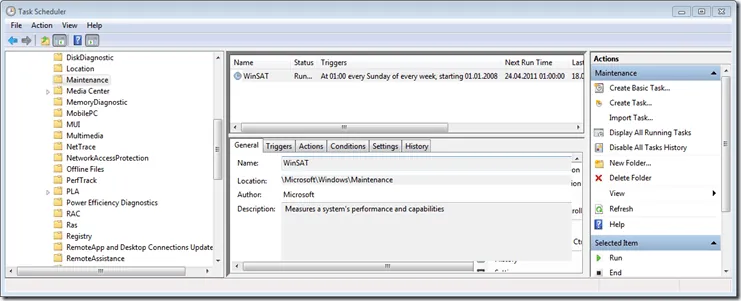
2. Streamlining Software Management with Windows Package Manager (winget)
The Windows Package Manager, or `winget`, is Microsoft’s official, open-source package manager. It’s a game-changer for quickly installing, upgrading, and removing applications. For gamers, this means rapidly setting up a new PC with all your essential software, updating multiple game launchers or utilities with a single command, and ensuring your system is always running the latest versions, saving countless hours of manual downloading and clicking. Its efficiency is unparalleled, transforming software deployment into a simple, automated process.
# Search for an application (e.g., a browser or gaming client)
winget search Google.Chrome

# Install an application
winget install Microsoft.VisualStudioCode

# Update all installed applications
winget upgrade --all
3. Managing Running Processes (Get-Process, Stop-Process)
Understanding and controlling running processes is fundamental for system optimization. PowerShell allows you to list all active processes and selectively stop those that are consuming excessive resources or have become unresponsive. This is invaluable for troubleshooting game performance drops, identifying background applications hogging CPU/RAM, or force-closing a frozen game without resorting to a full system reboot. Precision control over processes is a cornerstone of maintaining a responsive and efficient gaming environment.
# List all running processes
Get-Process

# Find a specific process by name (e.g., a game or background app)
Get-Process -Name 'Discord'

# Stop a process by name (replace 'ProcessName' with the actual name or ID)
Stop-Process -Name 'notepad' -Force
4. Controlling Windows Services (Get-Service, Stop-Service, Start-Service)
Windows services run in the background, often consuming resources whether you need them or not. PowerShell gives you granular control to list, start, and stop these services. This is incredibly useful for disabling unnecessary background services that might impact gaming performance (e.g., printer spoolers if you don’t print, or certain telemetry services), or for enabling services required for specific applications or features. This fine-grained control is a key aspect of true system optimization, allowing you to minimize background overhead for maximum gaming performance.
# List all services
Get-Service

# Get a specific service (e.g., 'Spooler' for printing)
Get-Service -Name 'Spooler'

# Stop a service
Stop-Service -Name 'Spooler'

# Start a service
Start-Service -Name 'Spooler'
5. Navigating and Managing Files (Get-ChildItem, Copy-Item, Remove-Item)
Efficient file management is the bedrock of a well-organized system. PowerShell provides powerful cmdlets to list directory contents, copy, move, and delete files and folders with precision. These operations are fundamental for organizing large game installations, managing mod files, backing up crucial configuration settings, or performing targeted cleanup of system clutter and temporary files. Mastering these commands ensures a clean, responsive system, which is vital for optimal storage performance and overall PC hygiene.
# List contents of the current directory
Get-ChildItem

# List contents of a specific path
Get-ChildItem -Path 'C:\Users\YourUser\Documents'

# Copy a file
Copy-Item -Path 'C:\Source\file.txt' -Destination 'C:\Destination\file.txt'

# Remove a file
Remove-Item -Path 'C:\Temp\old_log.txt'
6. Advanced Event Log Filtering (Get-WinEvent)
When your system misbehaves, the Windows Event Log is your first stop for diagnostics. `Get-WinEvent` is the modern, highly efficient cmdlet for querying these logs, a significant upgrade from the older `Get-EventLog`. Crucially, you should always use `-FilterHashtable` for performance, as it allows the filtering to happen at the event engine level rather than piping all events to `Where-Object`. This is paramount for troubleshooting system stability issues, identifying specific ‘bad events,’ or diagnosing performance anomalies during gaming sessions, as many users desire more granular control over event filtering. This method drastically reduces query times, making deep system diagnostics practical and efficient.
# Find recent critical errors in the System log (Level 1-Critical, 2-Error)
Get-WinEvent -FilterHashtable @{LogName='System'; Level=2; StartTime=(Get-Date).AddDays(-1)} | Format-Table -AutoSize

# Find specific Event ID (e.g., shutdown event 1074 from User32 provider)
Get-WinEvent -FilterHashtable @{ProviderName='User32'; Id=1074} | Select-Object TimeCreated, Message | Format-List
The PowerShell Community: A Network of Heroes
Beyond its technical prowess, PowerShell fostered a vibrant community of ‘programmer admins’—individuals who embraced scripting to automate, optimize, and share their solutions. This social environment, as Jeffrey Snover observed, is where ‘cleverness’ thrives and careers are transformed. Unlike the solitary nature of GUI-based problem-solving, scripting creates shareable artifacts that spark collaboration, feedback, and mutual growth. This collective intelligence has been instrumental in PowerShell’s evolution and widespread adoption, empowering users to become ‘heroes’ in their own right by sharing their ingenuity and problem-solving techniques.
Jeffrey Snover eloquently describes the social aspect: ‘The GUI is antisocial… when you solve it with a command line interface in a scripting environment, you have an artifact. And all of a sudden that artifact can be shared with someone.’
Beyond the Basics: Automation, Customization, and the Cloud
PowerShell’s impact extends far beyond basic commands. It’s the backbone of advanced automation, enabling scheduled tasks, Desired State Configuration (DSC) for consistent system states, and complex workflows. Its cross-platform availability on Linux and macOS further solidifies its position as a universal automation language. Crucially, PowerShell’s design was foundational to Microsoft Azure’s success, enabling the scalable, scriptable infrastructure required for cloud computing. Mastering PowerShell isn’t just about current system management; it’s about equipping yourself with a future-proof skill set for hybrid computing and advanced technical roles, making it an indispensable asset in any tech professional’s toolkit.

Frequently Asked Questions
Is PowerShell difficult to learn, especially for beginners?
While PowerShell has a learning curve, its object-based nature provides remarkable consistency, making it predictable and powerful. Resources like ‘PowerShell in a Month of Lunches’ (recommended by Jeffrey Snover himself) and the vibrant community make it highly accessible. Start with basic cmdlets, experiment, and gradually build your scripting skills. The direct examples in this guide are a great starting point for hands-on learning.
Why use PowerShell when Linux command line tools are ‘simpler’?
As Jeffrey Snover explains, Windows is an API-oriented OS, fundamentally different from Linux’s file-oriented nature. PowerShell is purpose-built to interact with Windows APIs and structured data (objects), making it uniquely powerful and efficient for Windows management. Attempting to force traditional text-parsing Linux tools onto Windows is often inefficient or impossible due to this architectural mismatch. It’s about using the right tool for the right operating system’s underlying design principles.
How can PowerShell help me optimize my gaming PC?
PowerShell is invaluable for low-level tuning and troubleshooting. You can use it to precisely manage background services, identify and terminate resource-hogging processes, efficiently install and update gaming software (via `winget`), assess system performance (with WinSAT), and analyze detailed event logs for stability issues. This level of granular control ensures your system runs optimally, minimizing latency and maximizing frame rates for a superior gaming experience.
Where can I find more PowerShell commands or learn more?
The official Microsoft Learn documentation is comprehensive and continuously updated. For practical learning, explore community forums like PowerShell.org and dive into popular books like those by Don Jones and Lee Holmes. Directly within PowerShell, use `Get-Help
Master Your Machine: The Enduring Power of PowerShell
PowerShell stands as a testament to persistent vision, strategic innovation, and intelligent engineering. From its contentious birth within Microsoft’s GUI-centric culture to its current status as an indispensable tool for Windows system administration and the backbone of cloud infrastructure, it offers unparalleled control and automation. For the LoadSyn reader, understanding PowerShell isn’t just about learning commands; it’s about unlocking the full potential of your PC, troubleshooting with precision, and joining a vibrant community dedicated to mastery. Embrace the command line, and truly own your digital experience, optimizing it for every challenge, from competitive gaming to deep system diagnostics.