

Key Takeaways for Competitive Input
- DS4Windows is mandatory for PC users: It is the only reliable way to enable DualShock/DualSense controllers and must be used with the ViGEmBus and HidHide drivers to prevent double input.
- Wired Overclocking is king: DualSense wired, when overclocked (OC), achieves the lowest input lag (1.8ms), significantly beating standard wired (11.1ms) and all Xbox controllers.
- Dead Zones are fundamentally broken in some major titles: The Forza Motorsport dead zone bug remains unfixed 1.5 years later, and community fixes are required to bypass conflicting keybinds in competitive shooters.
- Aim Assist is platform-dependent: Titles like Apex Legends use a stronger aim assist value on console (.6) than PC (.4) to compensate for lower console frame rates.
The controller hardware available today—especially Sony’s DualSense—is technically phenomenal. But for competitive gamers, the input experience is often defined not by the hardware, but by the broken, buggy, or inconsistent software implementation. Whether you are on PC struggling with native Windows support, or on console dealing with game-breaking dead zone bugs and controversial aim assist settings, the solution requires optimization beyond the default settings. This is the definitive guide to taking control of your input stack, from raw latency benchmarks to the community fixes that make games playable.
Section 1: The Hardware Truth – Raw Input Lag Benchmarks
Competitive Controller Latency: Overclocked vs. Standard (Milliseconds)
If you are playing wired, you must overclock your Sony controller (DualSense or DS4) to achieve competitive latency (under 5ms). If you are playing wireless on Xbox, you must use the official Xbox Wireless Adapter; standard Bluetooth connections on Xbox controllers (7.6ms to 12ms) are significantly slower than the DualShock 4’s native Bluetooth (3.1ms).
Section 2: The PC Gamer’s Lifeline – DS4Windows Setup and Optimization
DS4Windows is the open-source virtual emulator that bridges the gap between Sony hardware and Windows, primarily by emulating an Xbox 360 controller. However, successful setup requires installing several specific dependencies and understanding the core functionality to avoid common input conflicts. This tool is mandatory because, without it, native Windows support for DualSense and DS4 is often non-existent or highly unstable, leaving the competitive player with unacceptable latency or mapping errors.
- Install the .NET 8 Desktop Runtime (x64): This is the current framework requirement for all DS4Windows versions 3.3.0 and newer.
- Install the ViGEmBus Driver: This driver is essential for spawning the emulated virtual controllers (e.g., the virtual Xbox 360 controller) that games recognize.
- Install the HidHide Driver: This critical step prevents the ‘double input’ issue where Windows recognizes both the physical DS4/DualSense and the emulated Xbox controller, ensuring clean, conflict-free input.
- Connection Check: Use a Micro USB cable or Bluetooth 4.0+. Note that only the Microsoft BT stack is currently supported; CSR and Toshiba adapters are often incompatible and will cause latency spikes.
Advanced DS4Windows Latency and Stability Tweaks
- Disable Output Data: For the lowest latency, uncheck ‘Enable output data to DS4’ in settings. This sacrifices rumble and lightbar control but drastically reduces data transfer volume and frequency, cutting milliseconds off your input time.
- Disable Steam Support: Ensure both PlayStation and Xbox Configuration Support options are disabled within Steam to prevent the platform from attempting its own remapping, which causes frustrating input conflicts and double-mapping errors.
- Optimize Bluetooth Setup: High latency (over 10ms) is 98% hardware related. Use a dedicated, high-quality BT USB adapter and ensure it is placed away from the PC case or noisy USB 3.0+ ports using an active cable extension to mitigate radio interference.
- Use Motion Controls: DS4Windows allows mapping the DualSense/DS4 gyro to control the mouse or sticks. When properly tuned, this feature offers a unique precision edge, particularly when emulating an Xbox 360 controller for fine aiming adjustments.
Section 3: Dead Zones, Drift, and the Unfixed Forza Bug
The dead zone defines the central area of a joystick that registers no input. It is the first line of defense against joystick drift, but its size is a delicate balance: too large, and your character response is slow and sluggish, delaying reaction time; too small, and you suffer involuntary movement. While competitive FPS players aim for a dead zone of 3-5 to maximize responsiveness, many games either lack the setting entirely or, worse, implement it incorrectly, forcing players to deal with the game’s flawed default values.
Case Study: The Game-Breaking Forza Motorsport Dead Zone Flaw
In Forza Motorsport (2023), a critical flaw remains unfixed 1.5 years after launch: if you map Acceleration/Braking or Steering away from the default triggers (RT/LT) to the Right Analog Stick (Controller Setup 5), the game’s Inner and Outer Deadzone settings fail entirely. Evidence suggests the dead zone is incorrectly hard-tied to the physical trigger location instead of the assigned control. This leaves the right stick stuck at default numbers, making precise driving impossible and causing a ‘totally game breaking half lock pause’ during high-speed steering maneuvers. The only solution is to rely on external software or revert to the inferior default control scheme.
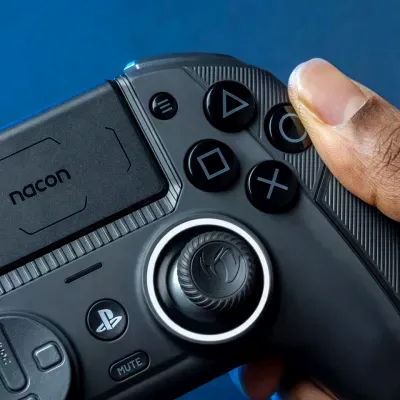
“The issue with binding the sprint to the move forward button is whenever you’re prone or crouched and you try to move forward prone or crouched it makes you stand up and start sprinting. Makes it almost impossible to move and stay down in those positions.”
Section 4: The Aim Assist Meta – Battlefield 6 and Black Ops 7
Aim Assist Strength Disparity (Apex Legends Example)
| Platform | Aim Assist Value | Developer Justification |
|---|---|---|
| Console (Xbox/PS5) | .6 | Higher value to compensate for lower typical console FPS compared to PC. |
| PC (Controller) | .4 | Lower value, assuming higher FPS and greater overall system responsiveness. |
The Battlefield 6 aim assist controversy reached a boiling point after post-beta changes introduced a ‘ridiculously strong’ rotational persistence that actively hindered aiming for many players. Following massive backlash, BF Studios Senior Console Combat Designer Matthew Nickerson confirmed they would revert to the open beta settings ‘shortly’ to reduce this unwanted stickiness and remove the ramp feature. For PC players tired of the perceived ‘OP aim assist’ and seeking immediate relief, a temporary workaround exists: adding the command GstGameplay.CrossPlayEnable 0 to the game’s PROFSAVE file. Be warned, however, this adjustment successfully disables crossplay but often results in being dropped into lobbies populated primarily with bots, sacrificing competitive experience for cleaner input.
Frequently Asked Questions (FAQ)
Why is my DualSense/DS4 controller laggy on PC?
The issue is almost always hardware-related (98% chance). The most common culprits are low-quality integrated Bluetooth adapters, high radio interference (from WiFi), or outdated drivers. Upgrade to a dedicated, high-quality BT dongle and ensure it is placed away from the PC shell using an active cable extension to mitigate interference.
How do I fix joystick drift on my PS5 DualSense?
First, reset the controller using the small button on the back with a fine-tipped pen. If drift persists, it indicates a hardware failure. Since PS5 system settings lack dead zone adjustment, you must rely on in-game settings (set dead zone to 3-5 for FPS) or contact customer support for repair/replacement.
Can I use the PlayStation Accessories app to update my DualSense on PC?
Yes. The official PlayStation Accessories app (Windows 10/11) is required solely for firmware updates. Note that only the DualSense Edge supports the ‘Customize’ functionality via this app; standard DualSense customization and advanced mapping must be done via DS4Windows.
Final Verdict: The Competitive Edge
The gap between elite hardware and flawed software has never been wider. The competitive controller meta is defined by two things: technical optimization and community knowledge. By utilizing essential tools like DS4Windows to bypass Windows incompatibility, overclocking your wired connection for sub-2ms latency, and relying on community guides to navigate game-breaking bugs like the Forza dead zone flaw or the BF6 aim assist inconsistency, you can reclaim the competitive edge. Never rely on default settings; the performance difference is measured in milliseconds and frames—the cost of a match.
Sources & Further Reading
- DS4Windows Project Documentation (Ryochan7/DS4Windows)
- Ultimate Controller Comparison | Input lag + more (Benchmark Data)
- EA Forum Discussion (ID 5640397) on Apex Legends Aim Assist Values
- Forza Support Forum: Dead Zone Adjustment Failure Reports (FM2023)
- PlayStation Accessories Application EULA and Setup Guide