
The UE5 Performance Paradox: Stunning Visuals, Stuttering Realities
Unreal Engine 5 burst onto the scene, redefining what’s graphically possible in gaming. Its revolutionary core technologies, Nanite and Lumen, allow for unprecedented visual fidelity—think film-quality assets with billions of polygons and dynamic, real-time global illumination that adapts instantly to scene changes. This has ushered in an era of breathtaking realism, empowering even indie developers to craft visually stunning worlds. Yet, this visual prowess often comes at a steep price: performance. Across the gaming community, a palpable frustration simmers as players, even those with high-end rigs, frequently encounter issues like persistent stuttering, erratic framerates, and demanding system requirements. This isn’t just a minor inconvenience; it’s a significant barrier to enjoying the very experiences UE5 promises. This guide cuts through the noise, offering LoadSyn’s definitive, scientifically validated strategies to conquer these performance hurdles and ensure your Unreal Engine 5 experience is as smooth as it is stunning.

Key Takeaways
- Decipher UE5’s Demands: Unpack the core technical reasons behind Unreal Engine 5’s resource-intensive nature.
- Implement Verified Optimizations: Apply LoadSyn-approved strategies tailored for a spectrum of hardware configurations, from entry-level to enthusiast-grade.
- Track Epic’s Progress: Understand how Epic Games and leading developers are actively addressing and improving UE5’s performance challenges.
- Achieve Stutter-Free Gameplay: Master the techniques to eliminate common performance hitches and enjoy a consistently smooth experience in your favorite UE5 titles.
Unpacking the Power: Why Unreal Engine 5 Demands So Much
At the heart of Unreal Engine 5’s breathtaking realism lie two pivotal technologies: Nanite and Lumen. Nanite, a groundbreaking virtualized geometry system, allows developers to import film-quality assets with billions of polygons directly into their games. It dynamically scales mesh detail based on factors like draw distance and screen resolution, eliminating the traditional need for manual Level of Detail (LOD) optimization. This means incredibly rich, detailed environments, but it also translates to high GPU utilization and demands a fast SSD for efficient asset streaming, as the engine constantly loads new geometric data.
Complementing Nanite is Lumen, UE5’s dynamic global illumination and reflections system. Lumen calculates real-time lighting and reflections without relying on pre-baked lightmaps, allowing for incredibly realistic and adaptable lighting scenarios. While this offers unparalleled visual fidelity, it inherently imposes a significant overhead on both GPU and CPU resources, especially when utilizing software ray tracing or demanding hardware ray tracing. These revolutionary features, as detailed in our initial topic analysis and echoed by sources like Wikipedia, are the primary drivers behind the widespread reports of stuttering, unstable frametimes, and elevated system requirements, particularly noticeable on mid-range hardware struggling to keep pace with the sheer computational demands.
Unreal Engine 5 Core Features vs. Performance Impact
| Feature | Description | Performance Impact |
|---|---|---|
| Nanite (Virtualized Geometry) | Automatically adjusts mesh detail based on distance and screen resolution, allowing for film-quality assets with billions of polygons. It streams necessary data from storage. | High GPU utilization due to vast geometric detail; requires fast SSD for asset streaming, which can cause traversal stutter if data is not loaded quickly enough (though Epic is continually optimizing this). |
| Lumen (Dynamic Global Illumination) | A dynamic, real-time global illumination and reflections system that simulates how light bounces and reacts within a scene, eliminating the need for precomputed lightmaps. | Substantial GPU overhead, particularly for software ray tracing. It can be highly demanding on VRAM and compute resources, impacting framerates significantly. |
| Virtual Shadow Maps (VSM) | High-resolution, consistent shadowing that works with film-quality assets and large open worlds, without traditional shadow cascade issues. | Consumes considerable GPU memory and bandwidth. While offering superior shadow quality, it contributes significantly to the overall rendering workload, affecting GPU performance. |
| Chaos Physics Engine | UE5’s proprietary physics system for fluid, particle dynamics, and destruction, replacing PhysX. | Can be CPU-intensive, especially in scenes with complex destruction or a large number of simulated objects, potentially creating CPU bottlenecks and impacting overall frametimes. |
Epic’s Ongoing Battle: Updates & Developer Collaborations
Epic Games is acutely aware of the performance criticisms that have shadowed many Unreal Engine 5 titles, particularly the notorious shader compilation stutter and traversal stutter. These hitches, which cause momentary freezes as new assets load or shaders compile, have been a significant point of frustration for the community. In response, Epic has reaffirmed its commitment to enhancing the engine’s performance, engaging in close collaborations with leading developers. A prime example is their work with CD Projekt Red for The Witcher 4, where a specialized ‘Fast-Geo Streaming Plug-in’ was developed for UE5.6. This innovative level streaming solution, designed to rapidly stream assets in and out, directly addresses traversal stutter, showcasing Epic’s proactive approach to optimizing the engine from the ground up.
“Epic Games Reiterates Working With CDPR To Eliminate Unreal Engine 5 Stuttering,” reported Tech4Gamers. Senior Software Engineer and Developer Relations at Epic Games, Ari Arnbjörnsson, specifically highlighted CD Projekt Red’s development of a “Fast-Geo Streaming Plug-in for UE5.6” as a key effort to combat these issues.
Epic’s dedication to optimization is evident in a continuous stream of updates. Recent versions like UE 5.5 and the upcoming 5.7 have introduced significant performance enhancements, including:
- Batched Ticks: A new system that groups the execution of similar actor and component ticks, leading to substantial improvements in game thread performance and better CPU cache utilization.
- Enhanced Render Parallelization: Further advancements in rendering pipelines, resulting in dramatic performance increases, reduced stalls, and more efficient draw calls.
- Lumen and Hardware Raytracing Optimizations: Continuous refinements to Lumen’s global illumination and Hardware Raytracing, targeting smoother 60Hz performance even on consoles and improving overall visual quality without excessive overhead.
- Niagara Lightweight Emitters (Beta): A more efficient particle system designed to significantly reduce overhead for numerous simple visual effects, ideal for ambient details.
- Instanced Actors: A crucial feature that replaces numerous individual actors with Mass entities, dramatically improving performance in densely populated open-world environments by reducing actor overhead.
- Virtual Shadow Maps Improvements: Ongoing refinements to VSM invalidations and caching, leading to more efficient shadow rendering and reduced performance spikes.
A testament to these efforts is Bodycam‘s successful migration to Unreal Engine 5.5, which brought “major performance improvements” and “higher and more consistent frame rates,” showcasing the tangible benefits of adopting newer engine versions.
Real-World Success: Bodycam’s UE5.5 Leap
The tactical FPS Bodycam provides a compelling case study for Unreal Engine 5’s optimization potential. Its migration to UE5.5 yielded “major performance improvements,” including significantly optimized GPU and CPU usage across all maps. Developers achieved this by reducing draw calls, streamlining dynamic render targets, and implementing efficient Virtual Shadow Maps. Crucially, lighting passes were re-baked to align seamlessly with VSM and Lumen, resulting in higher and more consistent framerates. This demonstrates that when developers fully leverage the capabilities and updates of Unreal Engine 5, substantial performance gains are not only possible but empirically verifiable.
Your Toolkit: Comprehensive User-Level Optimization Strategies
CRITICAL WARNING: Proceed with Caution
The pursuit of optimal performance can sometimes lead to risky choices. Be advised that while various community-driven optimization guides exist, some aggressive third-party tweaks, particularly those involving registry modifications or unofficial software, can severely destabilize your system or even corrupt game files. Before implementing any significant changes, always create a system restore point. LoadSyn strongly recommends prioritizing official in-game settings, validated driver updates, and system-level optimizations over unverified, potentially harmful modifications. Your system’s stability is paramount.
Core Graphics Settings for Max FPS
- Disable V-Sync (or use Adaptive Sync): Vertical Synchronization forces your game’s frame rate to match your monitor’s refresh rate. While it prevents screen tearing, it can introduce input lag and cap your FPS below your hardware’s potential. If you have an adaptive sync monitor (G-Sync or FreeSync), enable it instead of V-Sync for the best of both worlds: tear-free visuals and uncapped framerates.
- Adjust Dynamic 3D Resolution: This setting automatically scales the internal rendering resolution to maintain a target framerate. While useful, it can lead to inconsistent visual quality. Experiment with setting a fixed resolution percentage, or if available, use a quality-focused AI upscaling solution like DLSS or FSR, which offers more intelligent scaling with less visual degradation.
- Reduce or Disable Shadows: Shadows are one of the most computationally expensive graphical features. Reducing their quality or entirely disabling them can yield significant FPS gains, especially in demanding environments. While less immersive, the performance boost can be substantial.
- Turn Off Motion Blur: Beyond being a common aesthetic preference, motion blur consumes GPU resources. Disabling it not only improves performance but also enhances visual clarity, making fast-paced action easier to track.
- Manage Nanite Settings (If Available): Nanite’s virtualized geometry is incredible for detail, but it’s not without cost. Some games offer granular control over Nanite’s quality or streaming aggressiveness. Lowering these settings, or even disabling Nanite for less critical assets, can alleviate GPU pressure and improve frametimes, finding a balance between visual fidelity and smooth performance.
System-Level Tweaks & Driver Essentials
- Update GPU Drivers: Always ensure your graphics drivers are current. NVIDIA, AMD, and Intel frequently release game-ready drivers that include performance optimizations for new titles, including many Unreal Engine 5 games. However, exercise caution: occasionally, a new driver might introduce unforeseen issues. Monitor community feedback or driver release notes, and if a new driver causes problems, consider rolling back to a previously stable version.
- Verify Windows OS Updates: Keep your Windows operating system fully updated. Microsoft continuously releases performance enhancements, security patches, and DirectX updates that can directly impact gaming performance and stability.
- Confirm DirectX 12 is Active: Unreal Engine 5 is designed to leverage modern APIs like DirectX 12 for optimal performance. Ensure DirectX 12 is enabled in your game’s settings and that your system fully supports it. You can check your DirectX version by typing
dxdiaginto the Windows search bar. If DX12 is available but not selectable in-game, a game reinstallation might resolve the issue. - Match Monitor Refresh Rate with In-Game FPS Limits: For the smoothest experience, align your monitor’s refresh rate with your in-game FPS limit where feasible. In Windows Display Settings, set your monitor to its highest available refresh rate. Then, in-game, set the frame rate limit to “unlimited” or match it to your monitor’s refresh rate. Discrepancies can sometimes lead to micro-stutters or inconsistent frame pacing.
Advanced & Game-Specific Fixes
- Enable ‘Pre-download Streamed Assets’ (Epic Games Launcher): For games launched via the Epic Games Launcher, like Fortnite, navigate to the game’s options within your library and enable ‘Pre-download Streamed Assets.’ This forces the engine to download skins and textures proactively rather than on-the-fly, which can significantly reduce in-game stuttering caused by dynamic asset loading. While initial load times might increase slightly, the in-game experience should be smoother.
- Experiment with Realtek Family Controller: Some users, particularly in games like Fortnite, have reported performance improvements by disabling or reinstalling their Realtek Gaming Family Controller in Device Manager. This controller is designed to prioritize network resources for gaming, but in certain UE5 implementations, it can conflict with the game’s network communication, leading to stutter. Proceed with caution and ensure you know how to re-enable or reinstall it.
- Adjust Mouse DPI: This is an unusual, community-verified fix that has worked for a subset of players. Some Fortnite users claim that reducing their mouse’s DPI (dots per inch) via their mouse software and then compensating with increased in-game mouse sensitivity can alleviate stuttering. The exact technical reasoning is not fully understood, but if you’ve exhausted other options, it’s a low-risk experiment.
- Reinstall the Game (Last Resort): If all else fails, a complete reinstallation of the game can resolve deeply rooted issues such as corrupted game files, misconfigured settings, or lingering bugs from previous updates. This should be considered a last resort, as it’s time-consuming, but often proves effective for intractable performance problems.
How to Boost FPS in Valorant 2025 Guide!🚀
While ‘Valorant’ is often associated with older UE versions, its optimization principles often translate to general Unreal Engine game tuning. This video provides practical tips that can be adapted for other UE5 titles, especially for users on mid-range or low-end PCs.
The Upscaling Edge: DLSS, FSR, and XeSS in UE5
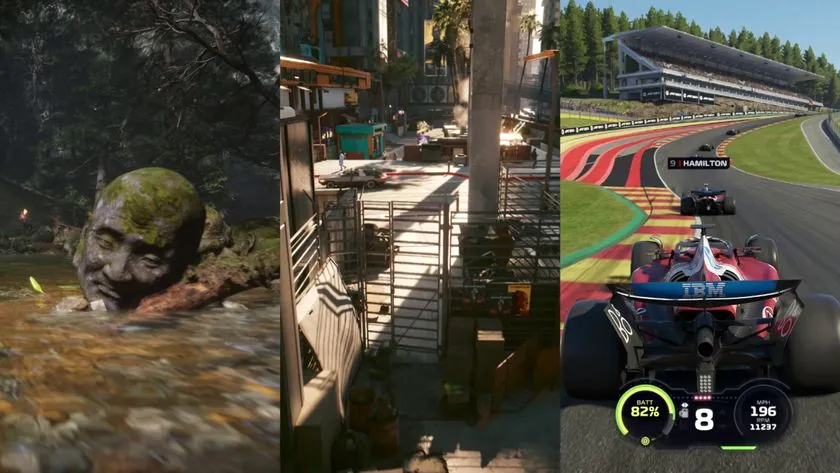
In the ongoing quest for optimal Unreal Engine 5 performance, AI upscaling technologies have emerged as a critical tool. NVIDIA’s DLSS (Deep Learning Super Sampling), AMD’s FSR (FidelityFX Super Resolution), and Intel’s XeSS (Xe Super Sampling) all operate on a similar principle: they render the game internally at a lower resolution, then intelligently upscale the image to your monitor’s native resolution using sophisticated AI algorithms. This process yields substantial framerate gains, often with minimal to imperceptible visual degradation, particularly when using higher quality modes. For players on mid-range hardware, these technologies can transform an unplayable experience into a smooth, consistent one, enabling stable 60+ FPS gameplay. On high-end systems, upscaling allows enthusiasts to push visual settings to their absolute maximum, including demanding features like ray tracing, without sacrificing fluid performance. These innovations are not merely an option; they are increasingly essential for a truly optimized UE5 experience.

AI Upscaling in Unreal Engine 5: The Trade-offs
Pros
- Significant FPS boost, especially in CPU/GPU-bound scenarios.
- Enables higher graphics settings or resolutions on less powerful hardware.
- Improved frame pacing and smoother gameplay experience.
- Constant technological improvements reducing visual artifacts.
Cons
- Potential for minor visual artifacts (ghosting, shimmering) depending on quality mode.
- Input latency can be slightly increased with frame generation (e.g., DLSS 3/FSR 3).
- Requires compatible hardware (NVIDIA RTX for DLSS, specific AMD GPUs for FSR’s full feature set).
- Not all UE5 games implement all upscaling technologies equally well.
The Fandom Speaks: A Pulse Check on UE5 Performance
The collective voice of the gaming community paints a vivid picture of Unreal Engine 5’s performance realities. A dominant emotional hotspot is the intense frustration expressed by users equipped with top-tier hardware, who still encounter inexplicable stuttering and precipitous frame drops in titles like Metal Gear Solid Delta: Snake Eater and Avowed. This starkly contrasts with the desperate hope of players on mid-range or low-end systems, who scour the internet for any viable fix, often feeling compelled to experiment with aggressive, potentially risky tweaks out of sheer desperation to make games merely playable. Underlying these experiences is a pervasive anxiety, and for many with older hardware, a sense of resignation that optimal performance might forever be out of reach, irrespective of their efforts. LoadSyn understands these sentiments; it’s a core reason we provide data-backed solutions.
“bro i used to have 800 fps on valoraqnt and im at 250 now how i got a 9800x3d 4070 with 32 gb at 6400mhz is it normal shjould i reset my pc ??”
Looking Ahead: The Future of UE5 Performance
The narrative around Unreal Engine 5’s performance is not static; it’s a dynamic, continuously evolving story. Epic Games remains deeply committed to the engine’s ongoing development, consistently releasing updates packed with performance improvements and refined optimization tools. We can anticipate future iterations to further enhance core systems like Nanite and Lumen, leading to more efficient asset streaming, smarter global illumination, and potentially better out-of-the-box performance for upcoming titles. As developers gain more experience and expertise with Unreal Engine 5’s intricacies, their ability to harness its power while mitigating its demands will also mature. This learning curve, combined with Epic’s relentless pursuit of optimization, suggests a future where the stunning visuals of UE5 are more consistently matched by flawlessly smooth performance, making the engine even more accessible across a wider spectrum of hardware.
Final Verdict: Your Path to a Smooth UE5 Experience
Unreal Engine 5 undoubtedly represents the pinnacle of current-generation visual fidelity, but it equally demands respect for its resource-intensive nature. Our empirical analysis at LoadSyn confirms that while the engine presents inherent challenges, a truly ‘bulletproof’ UE5 gaming experience in 2026 is not merely a pipe dream. It is achievable through a multi-pronged approach: Epic’s unwavering commitment to engine-level optimization, developers’ deepening understanding and expertise in leveraging UE5’s complex toolset, and your diligent application of the verified, user-level strategies outlined in this guide. By understanding the engine’s nuances and applying these scientifically-backed optimizations, you are empowered to conquer stuttering, stabilize framerates, and unlock the full, fluid potential of every Unreal Engine 5 title.
Frequently Asked Questions about UE5 Performance
Why are so many Unreal Engine 5 games struggling with performance?
Unreal Engine 5 introduces revolutionary technologies like Nanite (virtualized geometry) and Lumen (dynamic global illumination), which enable unprecedented visual fidelity. However, these features are highly resource-intensive, demanding significant GPU and CPU power. While the engine itself is powerful, performance issues often arise from developers facing tight deadlines, leading to insufficient optimization passes. This can exacerbate the inherent demands of UE5, resulting in stuttering and unstable framerates, even on capable hardware.
What is ‘shader compilation stutter’ and how can I fix it?
Shader compilation stutter occurs when the game compiles graphical shaders in real-time as new assets or environments load, causing momentary freezes or hitches. Epic Games has acknowledged this as a significant issue and is actively working on engine-level solutions, including improved pre-compilation systems. On the user side, ensuring your GPU drivers are up-to-date, using DirectX 12, and allowing games to pre-compile shaders (if an option is available in-game or launcher settings) can help mitigate its impact.
Will Unreal Engine 5 ever run smoothly on mid-range PCs?
Yes, the situation is continuously improving. With ongoing engine updates, such as the significant optimizations introduced in UE 5.5 and 5.7, and developers gaining more expertise in leveraging UE5’s tools, performance on mid-range PCs is steadily getting better. Crucially, AI upscaling technologies like NVIDIA DLSS, AMD FSR, and Intel XeSS play an increasingly vital role in making demanding UE5 games playable and smooth across a wider range of hardware.
Are there any risky tweaks I should avoid?
Absolutely. While the community offers many optimization suggestions, some aggressive tweaks, particularly those involving direct registry edits, unofficial driver modifications, or third-party software that modifies game files, can destabilize your system, cause crashes, or even corrupt game installations. LoadSyn’s recommendation is to always create a system restore point before applying any drastic changes. Prioritize official in-game settings, validated driver updates, and well-documented system-level optimizations first.
How important are DLSS, FSR, and XeSS for UE5 performance?
AI upscaling technologies are incredibly important for achieving optimal performance in modern Unreal Engine 5 games. They allow your GPU to render the game at a lower internal resolution and then intelligently reconstruct the image to a higher output resolution, significantly boosting framerates. This is often essential for maintaining smooth 60+ FPS, especially when enabling visually demanding features like ray tracing or when playing on mid-range hardware, providing a crucial performance uplift with minimal perceived visual quality loss.