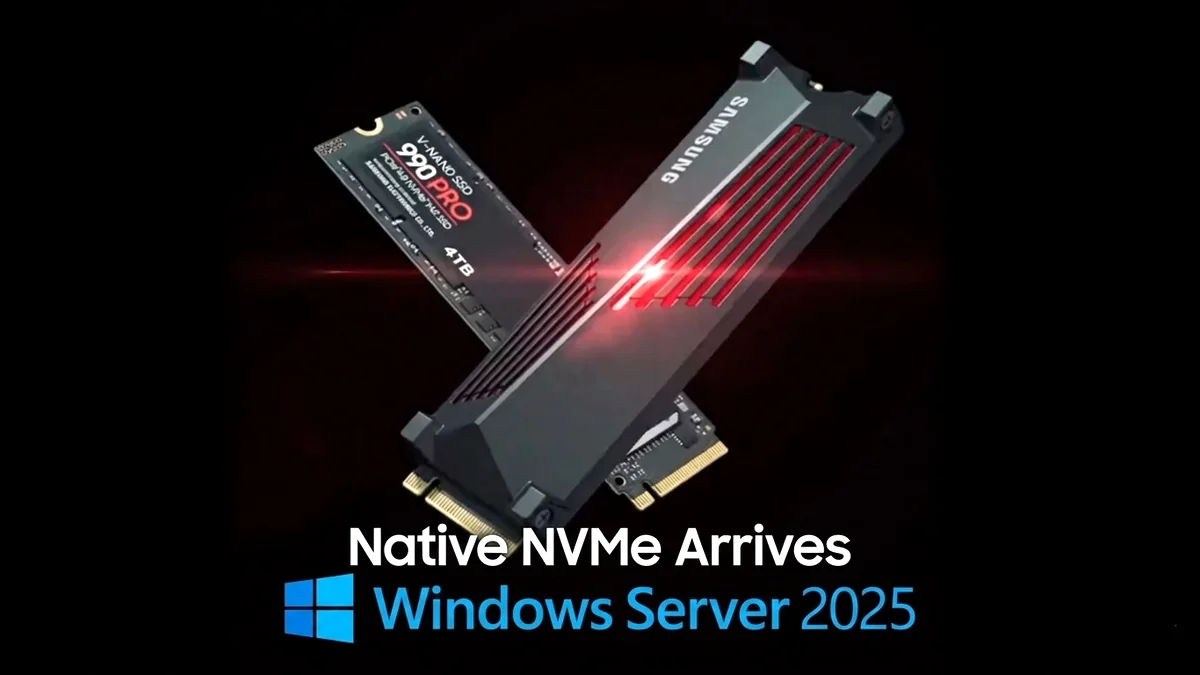

For over a decade, the true potential of NVMe storage on Windows Server has been held captive by a legacy SCSI emulation layer. But with Windows Server 2025, that era finally draws to a close. This pivotal, albeit long-awaited, development introduces native NVMe support, promising to unleash the raw performance modern flash drives were always meant to deliver. The community’s reaction has been a blend of relief and palpable frustration – a collective ‘it’s about time’ echoing across forums. This isn’t just a minor update; it’s a fundamental architectural shift with significant performance implications for I/O-intensive workloads. Join us as we dive deep into understanding, enabling, and optimizing this game-changing feature to truly unlock your server’s storage capabilities.
- Windows Server 2025 introduces native NVMe support, finally ending 14 years of reliance on SCSI emulation.
- Expect substantial performance gains: up to 80% higher IOPS and a 45% reduction in CPU utilization for NVMe storage operations.
- This crucial feature is opt-in, requiring a specific registry tweak or Group Policy deployment after installing the October 2025 cumulative update (KB5066835) or newer.
- Key enterprise workloads like SQL Server, Hyper-V, Storage Spaces Direct, and high-performance file servers stand to benefit immensely from these optimizations.
- Thorough planning, careful driver validation (using Microsoft’s StorNVMe.sys), and rigorous testing are essential before deployment, especially with vendor-specific drivers or older hardware.
Kick off the technical deep dive with Microsoft’s official overview of native NVMe support in Windows Server 2025, highlighting its impact and importance from the source.
The SCSI Shadow: Why Native NVMe is a ‘Storage Revolution’
To truly appreciate the “storage revolution” Microsoft is now touting, we must first understand the shackles that held NVMe back for so long. The core issue lay in Microsoft’s previous approach: routing NVMe I/O through a SCSI emulation layer. SCSI, or Small Computer System Interface, was a groundbreaking protocol in its time, but it was fundamentally designed for the spinning platters of older rotational hard drives. Its architecture relies on a single-queue model, capable of handling a mere 32 commands concurrently. This made perfect sense for mechanical drives, but it became an egregious bottleneck for modern NVMe SSDs, which are built for extreme parallelism. Native NVMe, by contrast, supports up to 64,000 queues, each capable of processing 64,000 commands simultaneously. For over a decade, Windows Server forced these high-performance flash devices to ‘speak’ a language designed for hardware from a bygone era, introducing unnecessary translation overhead, increasing latency, and significantly limiting throughput. It was akin to running a Formula 1 car on bicycle tires – the potential was there, but the interface choked it at every turn.
- Legacy Bottleneck: SCSI’s single-queue model, with a maximum of 32 commands, was fundamentally ill-suited for NVMe’s parallel architecture, stifling its native capabilities.
- NVMe’s True Potential: Designed specifically for flash, the NVMe protocol supports an astonishing 64,000 queues, each capable of handling 64,000 commands concurrently, a stark contrast to SCSI’s limitations.
- Translation Overhead: Every NVMe command had to be translated into a SCSI equivalent, introducing significant processing overhead and increasing I/O latency, even on the fastest drives.
- CPU Waste: The inefficient legacy I/O stack consumed excessive CPU cycles to manage storage operations, diverting valuable processing power from critical application workloads.
- Missed Gains: Enterprises running Windows Server were unknowingly leaving substantial storage performance and efficiency on the table, impacting everything from database queries to virtualization density.
“Wow. So only NOW they adopt the NVMe protocal? That is just insane. Storage tech from the 80s? Goddamn.”
Unpacking the Performance Gains: Benchmarks and Real-World Impact
The shift to native NVMe isn’t merely a theoretical upgrade; it’s a tangible leap forward, confirmed by Microsoft’s rigorous internal testing and corroborated by early independent reports. These are not just numbers for a spec sheet; they represent real-world improvements that translate directly into enhanced responsiveness, greater efficiency, and higher throughput across diverse enterprise workloads. Let’s delve into the data to see the profound impact of this change.
| Metric | Windows Server 2022 (SCSI) | Windows Server 2025 (Native) | Improvement |
|---|---|---|---|
| 4K Random Read IOPS (DiskSpd) | Baseline | Up to +80% | Significant |
| CPU Utilization (per I/O) | Baseline | Up to -45% | Substantial |
| SQL Server TPC-C Throughput | Baseline | ~+25% | High |
| SQL Server Query Latency | Baseline | ~-30-50% | High |
| Hyper-V VM IOPS | Baseline | ~+60-80% | Very High |
| File Server Throughput (Sequential) | Baseline | ~+50-70% | High |
Prerequisites: Before You Begin
Native NVMe Support Requirements
Before embarking on the native NVMe journey, it’s crucial to verify that your environment meets the necessary technical prerequisites. Skipping these checks can lead to activation failures or, worse, a lack of the expected performance gains. Here’s what you need to confirm:
Operating System
Drivers
Hardware
Before proceeding, ensure your NVMe devices are using the Microsoft StorNVMe.sys driver. Many vendor-specific drivers will not yield the native NVMe performance benefits. You may need to manually switch to the generic Microsoft driver via Device Manager if performance is not as expected.
How to Enable Native NVMe in Windows Server 2025
It’s important to understand that even after installing the prerequisite updates, native NVMe remains an opt-in feature, disabled by default. This means you’ll need to manually activate it. Given that these changes interact directly with your system’s core I/O stack, a crucial best practice cannot be overstated: always ensure you have a complete, verified system backup before proceeding with any system-level modifications. Once that’s done, choose the activation method that best suits your deployment scenario.
Method 1: Registry Modification (For Single Servers)
For individual servers or smaller deployments, a direct registry modification offers the quickest path to enabling native NVMe. Follow these steps precisely:
- Step 1: Verify Updates
Ensure KB5066835 (or newer) is installed. You can check this via PowerShell:Get-HotFix | Where-Object {$_.HotFixID -eq "KB5066835"} - Step 2: Check Current NVMe Driver
Confirm your NVMe devices are using the Microsoft StorNVMe.sys driver:Get-PnpDevice -Class "DiskDrive" | Get-PnpDeviceProperty -KeyName DEVPKEY_Device_DriverProvider - Step 3: Enable Native NVMe
Open PowerShell as Administrator and run the following command to add the required registry key:reg add HKEY_LOCAL_MACHINE\SYSTEM\CurrentControlSet\Policies\Microsoft\FeatureManagement\Overrides /v 1176759950 /t REG_DWORD /d 1 /f - Step 4: Reboot Your Server
Restart the server for changes to take effect:Restart-Computer -Force
Method 2: Group Policy (For Multiple Servers/Domain Environments)
In larger, domain-joined environments, leveraging Group Policy is the recommended and most scalable method for deploying native NVMe support. This ensures consistent configuration across multiple servers. Here’s how to implement it:
- Step 1: Download Group Policy MSI
Obtain the specific Group Policy MSI from Microsoft (e.g., related to KB5066835) and install it on your domain controller. - Step 2: Configure Group Policy Object (GPO)
Opengpmc.msc, create a new GPO (or modify an existing one), and navigate to:Local Computer Policy > Computer Configuration > Administrative Templates > KB5066835 251014_21251 Feature Preview > Windows 11, version 24H2, 25H2. Enable the policy for Native NVMe support. - Step 3: Apply GPO & Reboot
Link the GPO to the relevant organizational unit (OU) containing your target servers. Force a Group Policy update (gpupdate /force) and then restart the affected servers.
Verifying Native NVMe Activation
After carefully enabling native NVMe and rebooting your server, the next critical step is to verify that the feature is indeed active and that your storage devices are now leveraging the new, optimized I/O stack. Without proper confirmation, you can’t be sure you’re reaping the benefits. Here are several methods to check your configuration and validate the changes:
- Device Manager (
devmgmt.msc): Navigate to ‘Storage disks’ or ‘Disk drives’. Your NVMe devices should now be explicitly listed, and crucially, their driver properties should clearly indicate the use of theStorNVMe.sysdriver, signifying the native stack is engaged. - PowerShell Verification: For a more granular command-line check, use these cmdlets:
- Check NVMe devices:
Get-PnpDevice -Class "DiskDrive" | Where-Object {$_.FriendlyName -like "*NVMe*"} - Check driver details:
Get-PnpDevice -Class "DiskDrive" | Get-PnpDeviceProperty -KeyName DEVPKEY_Device_DriverVersion - Verify new stack usage:
Get-StorageSubSystem | Select-Object FriendlyName, HealthStatus, Model
- Check NVMe devices:
- Performance Monitor (
perfmon.msc): The ultimate proof of concept lies in performance metrics. Launch Performance Monitor and add the counterPhysical Disk > Disk Transfers/secfor your specific NVMe drive(s). Then, run a synthetic I/O workload using a tool likeDiskSpd.exe. You should observe a distinctly higher IOPS count compared to any benchmarks taken before native NVMe activation, providing empirical evidence of the improvement.
Employ one or more of these methods to confirm successful activation:
While primarily focused on Windows Server, the underlying NVMe registry trick has been explored by enthusiasts on Windows 11. This video offers insights into how such changes can be tested and validated.
Optimizing Native NVMe for Your Workloads
Enabling native NVMe is a significant leap, but it’s just the starting gun in the race for peak performance. To truly capitalize on these newfound gains, you’ll need to fine-tune your system configuration to align with your specific workloads. A generic ‘enable and forget’ approach will leave performance on the table. By strategically optimizing for common enterprise scenarios, you can unlock even greater responsiveness and efficiency from your high-speed storage.
SQL Server and OLTP Databases
- MPIO Configuration: For environments with multi-path storage, enabling Multi-Path I/O is crucial:
Enable-WindowsOptionalFeature -Online -FeatureName "MultiPathIO" -All - Queue Depth Tuning: Adjust settings via Device Manager (NVMe Properties > Advanced tab) and monitor SQL Server’s I/O latency:
SELECT database_name, file_id, io_stall_read_ms, io_stall_write_ms FROM sys.dm_io_virtual_file_stats(NULL, NULL) - TempDB Optimization: Dedicate a separate, natively optimized NVMe volume specifically for TempDB files to isolate high-churn I/O.
SQL Server and other OLTP (Online Transaction Processing) databases are notoriously I/O-intensive, making them prime candidates for native NVMe optimization. Consider these targeted adjustments:
Hyper-V and Virtualization
- VM Storage: Configure VMs with NVMe storage controllers for guest OS disks. Generation 2 VMs are highly recommended.
- Storage QoS: Implement Storage Quality of Service to set IOPS limits:
Set-VMHardDiskDrive -VMName "VM1" -MinimumIOPS 100 -MaximumIOPS 10000 - VHDX Optimization: Leverage VHDX dynamic disks on native NVMe volumes for efficient space utilization without compromising speed.
Virtualization platforms like Hyper-V are heavily reliant on storage performance. Here’s how to maximize those benefits:
Storage Spaces Direct (S2D)
- All-Flash Configuration: Ensure clusters use all-flash storage, prioritizing PCIe Gen5 NVMe drives for both capacity and cache tiers.
- RDMA Networking: Utilize RDMA-capable network adapters (25GbE+) to minimize latency between nodes.
- Volume Creation: Choose ReFS for performance and data integrity:
New-Volume -FileSystem CSVFS_ReFS -StoragePoolFriendlyName "S2D Pool" -Size 1TB
Integrating native NVMe can supercharge S2D clusters. For optimal results, consider these points:
File Server and SMB Optimization
- SMB Direct (RDMA): Enable SMB over QUIC for modern transport:
Set-SmbServerConfiguration -EnableSMBQUIC $true - SMB Multichannel: Aggregate network bandwidth:
Set-SmbClientConfiguration -EnableMultiChannel $true - NTFS Optimization: Disable Last Access Time updates (
fsutil behavior set disablelastaccess 1) to reduce unnecessary write operations.
Combine the new I/O stack with these SMB and NTFS optimizations:
Monitoring and Troubleshooting Native NVMe
Once native NVMe is enabled and meticulously optimized, your work isn’t over. Continuous monitoring becomes paramount for validating the expected performance gains and proactively identifying any potential issues before they escalate.
Performance Monitoring Tools
- Performance Monitor (
perfmon.msc): TrackPhysical Disk > Disk Transfers/sec,Avg. Disk sec/Read, andAvg. Disk sec/Write. - Windows Admin Center: Use the web-based interface for a centralized overview of IOPS, throughput, and latency across your server estate.
- DiskSpd.exe: Simulate specific workload characteristics:
diskspd.exe -b4k -r -Su -t8 -L -o32 -W10 -d30 C:\testfile.dat
To effectively track and verify performance, a robust set of monitoring tools is indispensable:
Common Troubleshooting Scenarios
- Native NVMe Does Not Activate: Check that
StorNVMe.sysis in use, verify registry/GPO accuracy, and ensure a full reboot has occurred. - Performance Did Not Improve: Profile your workload to see if it’s CPU or network-bound. Check System logs for ‘stornvme’ errors:
Get-EventLog -LogName System -Source "stornvme" -Newest 50 - Compatibility Issues: Consumer-grade drives may exhibit unexpected behavior. Always test in non-production environments first.
Best Practices and Recommendations
Pros and Cons of Enabling Native NVMe
Implementing native NVMe support offers compelling advantages with some specific considerations:
Pros
- Massive Performance Boost: Up to 80% IOPS increase.
- Reduced Latency: Streamlined I/O paths.
- Future-Proofing: Ready for PCIe Gen5 hardware.
- Resource Savings: Frees up CPU cycles.
Cons
- Opt-in Requirement: Manual configuration needed.
- Driver Dependency: Microsoft StorNVMe.sys only.
- Hardware Specificity: Greatest gains on Gen5.
- Testing Required: Mandatory lab validation.
Critical Implementation Checklist
Do’s
- Test in Lab before production.
- Create a full verified Backup.
- Establish clear Performance Baselines.
- Use Enterprise-Grade hardware.
- Keep Drive Firmware updated.
Don’ts
- Blindly deploy to production.
- Use Vendor Drivers for native gains.
- Expect miracles on PCIe Gen3 hardware.
- Ignore UPS/Power protection if using aggressive caching.
Frequently Asked Questions
Is native NVMe enabled by default in Windows Server 2025?
Will this feature come to Windows 11 or other client versions?
Do I need new hardware to benefit from native NVMe?
What if my NVMe drive uses a vendor-specific driver?
A New Foundation for Windows Server Storage, Finally Unlocked
The introduction of native NVMe support in Windows Server 2025 marks a long-overdue but profoundly impactful shift in Microsoft’s storage stack. By shedding the shackles of legacy SCSI emulation, Windows Server is finally poised to unleash the full, raw performance of modern NVMe SSDs. While the community’s frustration over the delay is palpable, the undeniable performance gains – up to 80% higher IOPS and 45% less CPU overhead – make this an essential upgrade for any I/O-intensive workload. LoadSyn’s verdict: Proceed with caution, validate meticulously, and prepare to redefine your expectations of Windows Server storage performance. The future of high-performance computing on Windows Server has truly arrived.